Yes, Google Slides can be interactive. Four of these ways are built in, a Google Form is free, and way 5 needs a tool you add (we make one of them, Pop Quiz).
1. Links and buttons: how to link slides in Google Slides #
A link on text, a shape or an image jumps to another slide or opens a web page when clicked in Slideshow. It’s how you build a click-through menu, a choose-your-path story, or a self-check quiz where the right answer links to a “Correct” slide.
- Select the text, shape or image people will click.
- Click Insert > Link, or press Ctrl + K (⌘ + K on a Mac).
- Choose Slides in this presentation and click the slide to jump to, or paste a web address and click Apply.
- To change or remove a link, click it and choose Change or Remove.
- Press Slideshow to test it: in the editor, a click only shows a preview of the link.
- Presenting live? In Slideshow, type a slide number and press Enter to jump straight there, no link needed.
Good for: onboarding packs, product tours, choose-your-path decks and self-check quizzes, one person at a time.
2. Q&A in Google Slides: the built-in audience questions #
Google Slides has a live Q&A built in, and as of October 2026 it’s still there: viewers “ask questions from any device” and vote on each other’s.
- Next to Slideshow, click the Down arrow and choose Presenter view.
- In the new window, click Audience tools (or press A during a slideshow).
- Click Start new, or Continue recent to pick up an earlier session.
- Your audience opens the link shown at the top of your slides, clicks Ask a question…, and submits, anonymously if they like.
- To show a question full screen, click Present next to it, and Hide to take it down.
- End the session with the on/off switch in the Q&A window, then read every question later under Tools > Q&A history.
Good for: talks, town halls, all-hands, and training where people won’t put a hand up. It takes questions only, not polls or quizzes.
3. Video, audio, animations and transitions: reveals that land #
These don’t ask the audience to do anything, but they make a slide react: the answer appears after the guesses, the clip plays on cue. Pair them with a question asked out loud.
- For a reveal, select the answer (text, image or tick) and click Insert > Animation.
- Leave it as Appear (On click), so it stays hidden until you click. Tick By paragraph to reveal a list line by line.
- For a clip, click Insert > Video and choose Search YouTube, By URL or Google Drive.
- Select the video, click Format options, and under “Video playback” choose Play (on click), Play (automatically) or Play (manual).
- For sound, upload an .mp3 or .wav file to Google Drive, then click Insert > Audio and select it.
- Add slide transitions under Slide > Transition, and share the deck with anyone else presenting it so the media plays for them.
- Rehearse in the browser you’ll present from: Google notes “certain animations may not function” in some browsers.
Good for: quiz reveals run by a quizmaster, “guess before I show you” moments, pacing a long talk. The room shouts the answers; nothing is collected.
4. A Google Form, linked or QR-coded from the deck #
A slide can’t hold a form, but it can point to one. People answer on their own phone or laptop, and the results land in Google Forms.
- Build the form in Google Forms. To mark answers, go to Settings, turn on Make this a quiz, and set an answer key and points.
- Click Publish and choose who can respond. An unpublished form won’t open for anyone, even with the link.
- Click Share, tick “Shorten URL”, then click Copy responder link.
- Put the link on a slide as text, or on a button (way 1).
- For phones, open the link in Chrome, choose More > Cast, save, and share > Create QR code, download it, and add it with Insert > Image.
- Guests answering? Leave “Limit to 1 response” off (it makes everyone sign in), and on a work account turn off “Restrict to users in [your domain]…” under Settings > Responses.
- To show results, insert the responses chart with Insert > Chart > From Sheets, then click Update after people answer. It doesn’t refresh during the slideshow.
Good for: surveys, sign-ups, feedback after a session, and graded checks people do in their own time. Not for a live vote the room watches come in.
5. Live polls, word clouds and quizzes on phones: an extension or add-on #
This gets the whole room answering at once, with results on the slide as they come in. It needs a tool: a Chrome extension (Pop Quiz, which we make, or Poll Everywhere) or a Workspace add-on from the Extensions menu (Slido, AhaSlides, and classroom tools Pear Deck and Nearpod). The difference is in our add-ons and extensions guide.
To add a poll to Google Slides with Pop Quiz, a free Chrome extension:
- Add Pop Quiz to Chrome and open your deck in Google Slides.
- Select a slide, choose Poll in the Pop Quiz side panel, and add up to 12 options.
- Add a join slide, with a big QR code, a short address and a four-letter room code.
- Press Google’s own Slideshow button.
- People scan the code, enter a nickname and vote, with no app or account for them or you.
- Results draw on your slide in your deck’s fonts and colours. The same panel runs quizzes, word clouds and a leaderboard (full walkthrough).
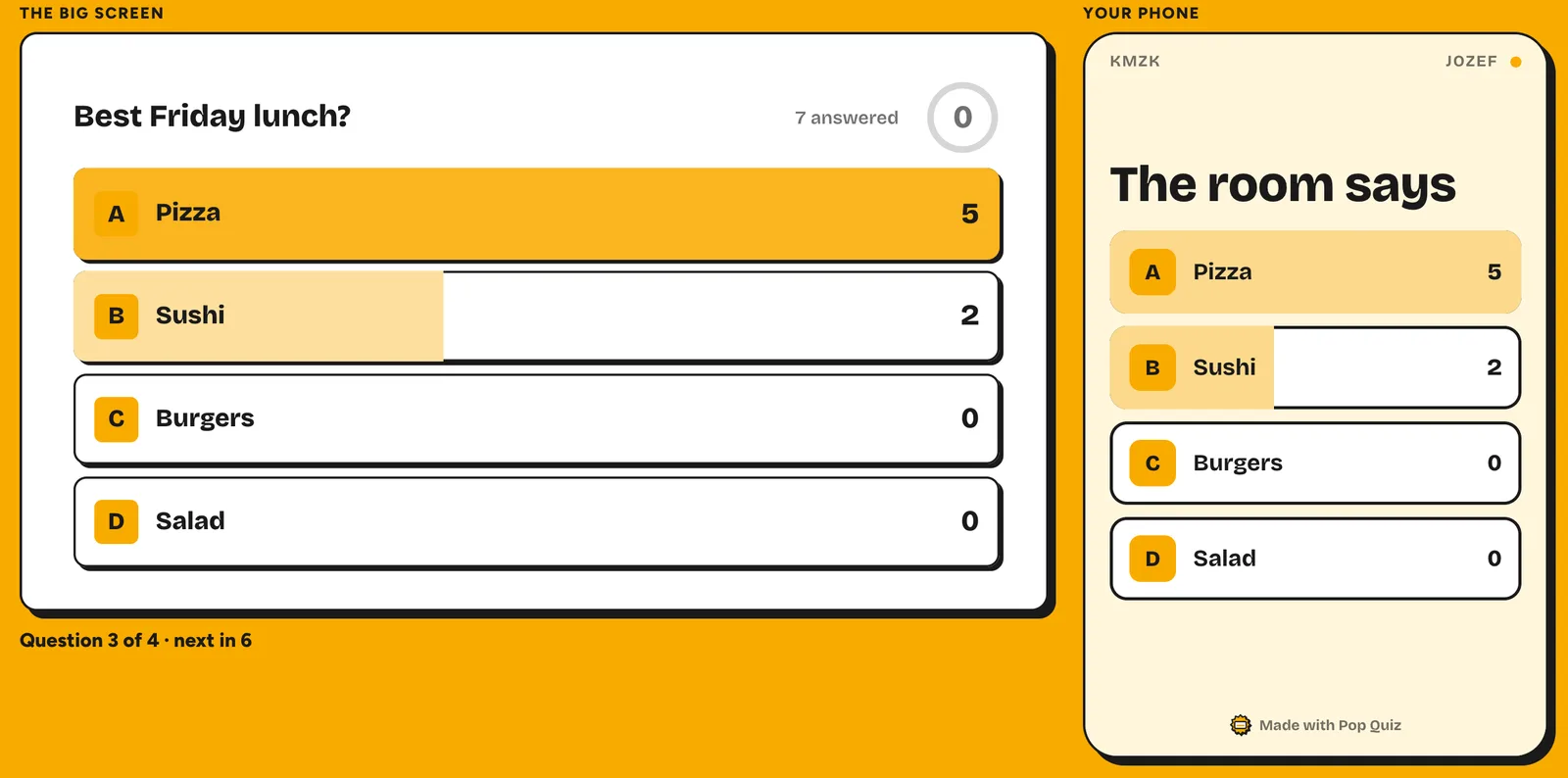
The limits: the presenter needs Chrome on a laptop or desktop, it works only in Google Slides, it’s too new for reviews, and it has no Q&A (pair it with way 2). For audience questions or answers by text message, look at Slido or Poll Everywhere.
Good for: polls in meetings, word clouds, team quizzes and socials. Not for a self-paced deck nobody is presenting live.
6. A Jeopardy-style game board with linked slides #
The game-show board is way 1 at full stretch: it looks impressive and it’s only links. It doesn’t track which squares are played or keep score, so someone does that on paper.
- Make the board slide: a grid of shapes, five category columns by five rows of points (100 to 500).
- Make one slide per clue (25 in all), with the answer on an Appear (On click) animation (way 3).
- Link every square to its clue: Insert > Link, Slides in this presentation, pick the slide.
- Add a “Back to board” button on every clue slide, linked to the board.
- Put the clue slides after an end slide, so the arrow key never walks through them.
- Present in Slideshow: click a square, read the clue, reveal the answer, click back.
Good for: game nights, revision and team socials with a small group and a scorekeeper.
Which way to use: in the room, on a call, or self-paced #
| Situation | Use | Why |
|---|---|---|
| In the room | Polls and quizzes (5), Q&A (2), reveals (3) | Everyone answers on a phone and sees the result on the big screen |
| On a video call | Polls and quizzes (5), Q&A (2) | Your links only work for you, so the audience answers on their own device |
| Self-paced | Links and buttons (1), a Google Form (4) | Nobody is presenting, so the deck does the work |
| Game night or team social | Game board (6), or a scored quiz (5) | Board for a small group; phones for a bigger one |
| Answers to keep | A Google Form (4) | Responses stay in Forms and Sheets |
Questions #
Can Google Slides be interactive for free? #
Yes. Links between slides, the audience Q&A and on-click animations are built in, and Google Forms is free for collecting answers. For live polls and quizzes on phones, Pop Quiz is a free Chrome extension, and several add-ons have free plans with limits.
Why don’t my links or drag-and-drop work in present mode? #
Links should work in Slideshow. If they don’t, check you linked to a slide rather than typing its title, and that you’re in Slideshow, not the editor. Drag-and-drop never works in Slideshow: present mode can’t move objects or edit text.
How do I add a poll to Google Slides? #
There’s no built-in poll. Link a Google Form from a slide (answers go to Forms, not live onto the slide), or add an extension or add-on that runs the poll on your slides, as in way 5.
Can my audience answer on their phones? #
Yes. The built-in Q&A works from any device, and a Google Form opens from a link or QR code. Live polls and quizzes need an extension or add-on; with Pop Quiz, players scan a QR code and enter a room code, with no app or account.
Where can I find interactive Google Slides templates? #
Free template sites have whole interactive categories, mostly click-through and drag-and-drop decks built with the methods above. Test a template’s buttons in Slideshow before you rely on it. A template gives you the look; the interaction is still links, animations or a tool on top.
Does any of this work in PowerPoint? #
The ideas do: links, animations and video all exist in PowerPoint, with different menus. Google’s Q&A and Pop Quiz work only in Google Slides, but you can import a PowerPoint file into Google Slides first.
Sources
- Google Slides steps were checked against Google’s help pages on 23 October 2026, where those pages cover them. Menus move, so if a step doesn’t match your screen, the page below will have the current wording.
- Google, Work with links & bookmarks, https://support.google.com/docs/answer/45893, checked 23 October 2026
- Google, Present slides, https://support.google.com/docs/answer/1696787, checked 23 October 2026
- Google, Accept and present audience questions, https://support.google.com/docs/answer/6386827, checked 23 October 2026
- Google, Insert or delete images & videos, https://support.google.com/docs/answer/97447, checked 23 October 2026
- Google, Add or change animations and transitions, https://support.google.com/docs/answer/1689475, checked 23 October 2026
- Google, Create & grade quizzes with Google Forms, https://support.google.com/docs/answer/7032287, checked 23 October 2026
- Google, Publish & share your form, https://support.google.com/docs/answer/2839588, checked 23 October 2026
- Google, Share tabs in Chrome (QR codes), https://support.google.com/chrome/answer/10051760, checked 23 October 2026
- Google, Link a chart, table, or slides, https://support.google.com/docs/answer/7009814, checked 23 October 2026
Jeopardy! is a trademark of Jeopardy Productions, Inc. Pop Quiz is not affiliated with it. We use “Jeopardy-style” only to describe the board format.