We make Pop Quiz; everything said about the others comes from their own listings, pricing and help pages, checked on 23 October 2026.
The ranking at a glance #
| Rank | Tool | What you install | Best for | Free option | Paid from |
|---|---|---|---|---|---|
| 1 | Slido | Add-on, plus optional extension | Meetings: polls, a quiz, live Q&A | 100 people, 3 polls, 1 quiz per event | AU$19.50 a month, billed yearly |
| 2 | Pop Quiz | Chrome extension | A scored team quiz in your own deck | Free | No paid plan |
| 3 | Poll Everywhere | Chrome extension | Big audiences, answers by web or text | Up to 40 audience | US$10 a month, billed annually |
| 4 | AhaSlides | Workspace add-on | The widest choice of activity types | 50 participants | US$7.95 a month, billed yearly |
| 5 | suPlay Poll | Workspace add-on | Simple polls, EU hosting | 50 per event (offer) | €9.99 a month |
| 6 | Pear Deck | Workspace add-on | Classrooms | Teacher Free | US$149 a year (educator discount) |
| 7 | Nearpod | Workspace add-on | Classrooms, whole lessons | Not on the free plan | US$159 a year |
| 8 | Live Polls Maker | Workspace add-on | A quick one-off poll | Listed as free | Check the listing |
| n/a | Mentimeter | No add-on: embed or import | Existing Mentimeter teams | Embed needs Pro | Pro €28 per presenter a month, billed yearly |
| n/a | Kahoot | No add-on: slides go into Kahoot | Existing Kahoot teams | Sync on selected paid plans | See Kahoot’s pricing |
We ranked for team meetings, not classes: does it work while you present from Google Slides, is the free option enough for a normal meeting, and how much setup does it ask of you and your audience?
Google Slides add-ons vs Chrome extensions: what’s the difference? #
| Google Workspace add-on | Chrome extension | |
|---|---|---|
| Installed from | Google Workspace Marketplace | Chrome Web Store |
| Lives in | Google Slides, under Extensions or the right-hand panel | The Chrome browser, as an icon next to the address bar |
| Tied to | Your Google account | Chrome, on a laptop or desktop only |
| Access | Google account access, granted at install (see below) | Chrome’s own prompt, at install |
| During the slideshow | The panel closes | Can work on the slideshow itself |
| Examples | Slido, AhaSlides, suPlay Poll, Pear Deck, Nearpod | Pop Quiz, Poll Everywhere, Slido’s optional extension |
The slideshow row matters most for polls: suPlay’s listing says its sidebar closes in present mode, so you run the poll from your phone. That’s why Slido adds an optional Chrome extension. And the confusing bit: inside Google Slides, add-ons sit under a menu called Extensions.
How to get add-ons and extensions in Google Slides #
Install a Google Slides add-on #
- In your deck, click Extensions, then Add-ons, then Get add-ons (or Get add-ons in the right-hand panel).
- Search for the add-on and open its listing.
- Click Install, then Continue.
- Check the access it asks for, click Allow, then Done.
- Open it from Extensions or the right-hand panel. Refresh the deck if it doesn’t appear.
Remove a Google Slides add-on #
- Click Extensions, then Add-ons, then Manage add-ons.
- Next to the add-on, click Options (the three dots), then Uninstall.
- Reload the deck. If your organisation installed it, ask your IT admin instead.
Install a Chrome extension #
- Open its Chrome Web Store page in Chrome on your computer.
- Click Add to Chrome, check what it can access, then click Add extension.
- Pin it from the puzzle-piece icon next to the address bar.
It won’t install in an Incognito or guest window, or on a phone or tablet.
Remove a Chrome extension #
- Right-click its icon.
- Choose Remove from Chrome. (Or Chrome’s menu, then Extensions, then Manage extensions, then Remove.)
The best Google Slides add-ons and extensions for quizzes and polls #
1. Slido
Best all-rounder for meetings- Best for
- Polls, word clouds, a quiz with a leaderboard, and live Q&A
- What you install
- Workspace add-on, plus an optional Chrome extension
- Free plan
- 100 participants, 3 polls and 1 quiz per event
- Paid from
- AU$19.50 a month, billed yearly
- Accounts
- You need one; your audience needs “no downloads or logins”
- On the listings
- 10M+ (Marketplace, updated 3 March 2026); 300,000 users (Chrome)
The catch. The free plan is built for small events. Check the limits against your meeting.
Slido recommends its Chrome extension (it needs the add-on first) if your deck uses animations, videos or speaker notes.
2. Pop Quiz
Ours: a team quiz game in your own deck- Best for
- The Friday quiz, the Christmas party, the onboarding icebreaker
- What you install
- Chrome extension (not in the Marketplace)
- Price
- Free. No paid plan, no trial, no ads
- Accounts
- None, for you or your players
The catch. It’s new, with no reviews yet. It needs Chrome on a laptop or desktop, works only in Google Slides and has no Q&A. Quizzes stay in the Chrome profile you built them in, so presenting from another laptop takes an import.
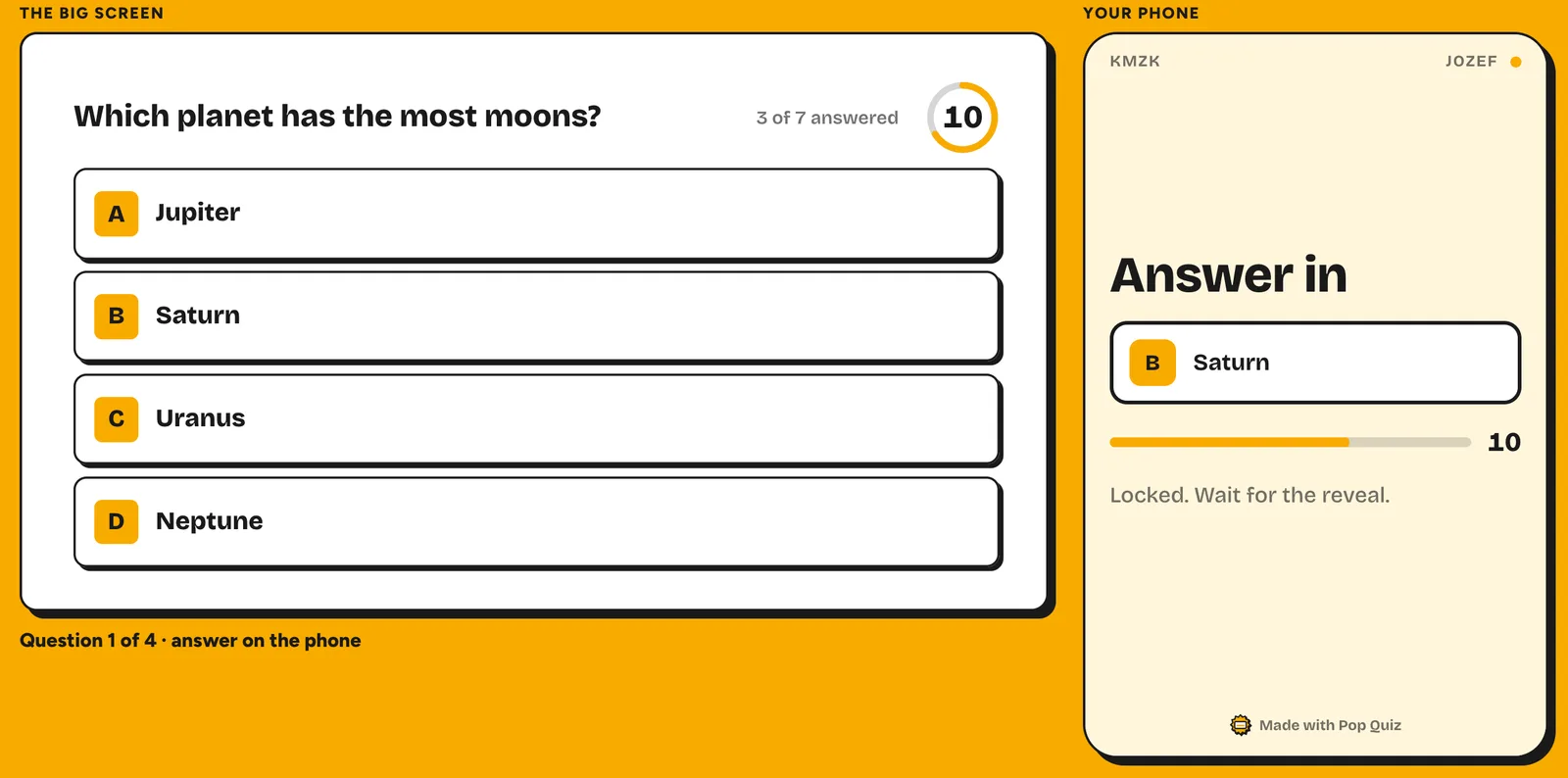
Press Google’s own Slideshow button and the question, timer, live results and leaderboard are drawn on your slides, in your deck’s fonts and colours. Eight question types; players join on their phones with a QR code or a four-letter room code.
3. Poll Everywhere
Best for big audiences- Best for
- Large, formal sessions, and rooms where some people need to answer by text (SMS)
- What you install
- Chrome extension, “Poll Everywhere for Google Slides”
- Free plan
- “40 max audience size”, unlimited questions
- Paid from
- US$10 a month, billed annually (US$120 a year)
- Accounts
- You need one to set it up
- On the listing
- 200,000 users, updated 21 October 2026
The catch. 40 people is a small free ceiling for an all-hands.
Poll Everywhere’s plans page labels the extension as for Poll Everywhere 1.0.
4. AhaSlides
The widest choice of activities- Best for
- A spinner wheel and a matching game in the same deck
- What you install
- Workspace add-on
- Free plan
- 50 participants; 5 quiz and 3 poll questions per presentation
- Paid from
- US$7.95 a month, billed yearly
- On the listing
- 381K+, updated 13 October 2026
The catch. Those per-presentation question limits, and presenting with AhaSlides imports your whole deck into AhaSlides, where your other slides become static images.
Twelve activity types, from polls, word clouds and Q&A to match pairs, correct order and a spinner wheel. Participants join by QR code or link, with no sign-up.
5. suPlay Poll
Simple polls, EU hosting- Best for
- Teams that want EU hosting and a no-fuss poll
- What you install
- Workspace add-on
- Free plan
- 50 participants and 15 polls per event
- Paid from
- €9.99 a month (Academic), €14.99 (Professional)
The catch. The free 50 participants is a “limited-time offer”, and you run the poll from your phone or laptop once you present.
An independent add-on from the Netherlands, hosted in the EU with no third-party trackers or advertising, by its listing. The audience votes in a browser from a join QR code.
6. Pear Deck
Best for classrooms- Best for
- Lessons, exit tickets and checks for understanding
- What you install
- Workspace add-on
- Free plan
- Teacher Free
- Paid from
- US$149 a year with the educator discount, as Pear Deck’s page shows it
- On the listing
- 81M+, updated 12 March 2026
The catch. It’s built for teachers, with no business plan.
Students join in a browser with a code; schools and districts get a quote.
7. Nearpod
Whole lessons, on a paid licence- Best for
- Schools that already pay for Nearpod
- What you install
- Workspace add-on
- Free plan
- None in Slides: the add-on “is limited to paid Nearpod licenses”
- Paid from
- US$159 a year (Gold), US$397 (Platinum)
- On the listing
- 58M+, updated 9 June 2026
The catch. No free route into Slides. The free Silver plan doesn’t include it.
It embeds Nearpod’s polls, quizzes and other activities into your deck, for live lessons or student-paced work.
8. Live Polls Maker
A quick one-off poll- Best for
- A quick one-off poll
- What you install
- Workspace add-on
- Free plan
- Listed as “Free of charge”, with no limits described
- On the listing
- 1M+, updated 31 March 2026
The catch. Try it on a test deck before a real meeting.
Multiple choice, word cloud, quizzes with a timer and leaderboard, rating, open text and ranking polls, with results you can export.
The Marketplace figures are the unlabelled number beside each listing’s download icon, copied exactly; the Chrome Web Store counts “users”. Don’t compare one with the other.
Mentimeter and Google Slides: how it actually works #
There’s no Mentimeter add-on for Google Slides: Mentimeter’s own integrations list has only a PowerPoint add-in. On Pro (€28 per presenter a month, billed yearly) you can embed a deck you’ve published to the web, then present from Mentimeter and click Enter Google Slides when you reach it. From Basic up you can import the deck as a PowerPoint or PDF file instead, but “imported slides become static images”, so animations and editable text don’t come across. Either way you present Mentimeter with your slides inside, not Google Slides with Mentimeter inside.
Does Kahoot work with Google Slides? #
Kahoot works the other way round: it imports or syncs your Google Slides into a kahoot, and you present from Kahoot. Sync is on paid plans: Pro Standard in Kahoot! 360 for work, and Kahoot!+ Silver and Gold or Kahoot! EDU for personal and school use. We found no Kahoot add-on for Google Slides in the Workspace Marketplace on 23 October 2026. If Kahoot’s player limits sent you here, see Kahoot alternatives for work teams.
What access do these add-ons ask for? #
Every Workspace add-on asks for Google account access at install. Broad access isn’t a warning sign (an add-on that inserts slides must edit your decks), but know what you’re granting on a work account. All six below also ask to see your email address and personal info. From each Marketplace page:
| Tool | Slides access | Also asks for |
|---|---|---|
| Slido | Only decks it’s installed in | Third-party sidebar content, an external service |
| suPlay Poll | Only decks it’s installed in | The same as Slido |
| AhaSlides | All your presentations | Drive files you use with it, third-party sidebar content, an external service |
| Live Polls Maker | All your presentations | Drive files you use with it, third-party sidebar content |
| Pear Deck | All your presentations | “See all your Google Sheets spreadsheets”, its own app data, an external service |
| Nearpod | All your presentations | Third-party sidebar content |
“Only decks it’s installed in” is Google’s “View and manage the Google Slides presentations that this application is installed in”. “All your presentations” is “See, edit, create, and delete all your Google Slides presentations”.
Chrome extensions skip Google’s account screen. Chrome shows its own prompt when you click Add extension, listing what the extension can do and on which sites. Slido’s and Poll Everywhere’s store pages don’t list their permissions, so read that prompt.
Pop Quiz asks for no Google account access and has no sign-in. It runs only on Google Slides pages, where it reads the open deck’s slide ids, shape positions and text to place the quiz. It can’t read your other Docs, Sheets, Gmail or browsing history. Quizzes stay on your computer; during a game the relay passes questions and answers to the phones and stores nothing. Detail on the privacy page.
Beyond add-ons #
For more ways to get a room talking, see how to make Google Slides interactive or the wider list of interactive presentation tools.
Questions #
Are Google Slides add-ons free? #
Many are free to install, with paid plans for bigger audiences or more features. Each listing shows a pricing line such as “Free of charge with paid features”. Pop Quiz is free, with no paid plan.
Do add-ons work while I’m presenting? #
An add-on’s sidebar isn’t part of the slideshow. So tools either run the poll from your phone or another window, or add a Chrome extension that works on the slideshow, as Pop Quiz does.
Why can’t I install an add-on or extension? #
On a work or school account, IT can block both. Chrome extensions also won’t install in an Incognito or guest window, or on a phone or tablet.
Can I use these on an iPad or phone? #
Not the Chrome extensions: Pop Quiz and Poll Everywhere need Chrome on a laptop or desktop to present. Your audience answers on their phones either way.
Does Pop Quiz work in PowerPoint? #
No, only in Google Slides. Import the PowerPoint file into Google Slides first and add the quiz there: how to make a free live quiz in Google Slides.
Sources
- Slido: Marketplace listing, Chrome Web Store, Slido for Google Slides, pricing, checked 23 October 2026
- Poll Everywhere: Chrome Web Store, Google Slides page, plans, checked 23 October 2026
- AhaSlides: Marketplace listing, AhaSlides for Google Slides, pricing, checked 23 October 2026
- suPlay Poll: Marketplace listing, pricing, checked 23 October 2026
- Pear Deck: Marketplace listing, pricing, checked 23 October 2026
- Nearpod: Marketplace listing, pricing, checked 23 October 2026
- Live Polls Maker: Marketplace listing, checked 23 October 2026
- Mentimeter: integrations, embed Google Slides, import a file, plans, checked 23 October 2026
- Kahoot: integrations for higher education, Kahoot! 360 pricing, Workspace Marketplace search, checked 23 October 2026
- Google: use add-ons in Google Slides, install Chrome extensions, manage extensions for an organisation, checked 23 October 2026
Pop Quiz is made by an independent developer in Auckland, New Zealand, and isn’t affiliated with Google or any tool above. Google Slides is a trademark of Google LLC; Slido, Poll Everywhere, AhaSlides, suPlay, Pear Deck, Nearpod, Live Polls Maker, Mentimeter and Kahoot are trademarks of their owners. Listings and plans change: if one has, tell us and we’ll fix it.