Google Slides has no quiz button, but links, Forms and extensions fill the gap. Already know you want a live quiz? Skip to Getting started with Pop Quiz.
Which way to make your Google Slides quiz #
| Linked slides | Google Form from the deck | Live quiz with Pop Quiz | |
|---|---|---|---|
| What players do | Click an answer on the slide | Answer a form on their own phone | Answer on their phone while the question is on the big screen |
| Who plays | One person, or one screen | Everyone, each at their own pace | Everyone at once |
| Marks it | Shows right or wrong, keeps no score | Yes, with a score per person | Yes, with points, a leaderboard and speed as the tie-break |
| Results on your slides | No | No: they stay in Forms | Yes, live, in your deck’s own design |
| Install | Nothing | Nothing | A free Chrome extension |
| Cost | Free | Free | Free |
| Best for | Revision, a self-paced game, a kiosk | A test, a training check, homework | A team quiz, a Friday quiz, a Christmas quiz |
Can you make a quiz in Google Slides? #
Yes. Slides has no quiz feature, but links are enough for a quiz that marks itself. For a whole room, pair the deck with something that collects answers: a Google Form, or an extension.
Way 1: a click-through quiz with linked slides #
The classic interactive quiz in Google Slides: each answer jumps to a slide saying whether it was right.
- Question slide: the question, plus each answer in its own shape (A, B, C, D).
- Answer slides: one says “Correct” with a “Next question” button, one says “Not quite” with a “Try again” button.
- Link each answer: select it, Insert > Link (Ctrl+K, ⌘+K on a Mac), choose Slides in this presentation, pick the slide, press Apply.
- Link the way back: “Try again” to the question, “Next question” to the next question.
- Repeat for each question, with its own “Correct” and “Not quite” pair.
- Play it with Slideshow at the top right. Links only jump while the deck is presented.
Fits: one person, a class revising on one screen, a kiosk. Can’t: keep score, know who answered, or let a room answer at once.
Way 2: a Google Form linked or QR-coded from the deck #
Google Forms marks quizzes for you. Make the quiz in Forms, then put its link and a QR code on a slide.
- Make it a quiz: in a new form, click Settings and turn on Make this a quiz.
- Add the answer key: for each question, click Answer key, tick the right answer and set the points.
- Pick when marks show: under Settings, Release grades straight away or after you review.
- Publish it: click Publish, then under General access choose who can answer. An unpublished form won’t open for anyone.
- Copy the link: click Share, tick Shorten URL, then Copy responder link.
- Put it on a slide: paste the short link and link it with Insert > Link.
- Add a QR code: open the link in Chrome, More > Cast, save, and share > Create QR code, Download, then in Slides Insert > Image > Upload from computer.
Fits: a test at each person’s own pace, a training check, longer answers. Can’t: show answers on your slides, run a clock, or give the room a moment together. Results stay in Forms.
Way 3: a live quiz on phones, with an extension #
A live quiz needs something that sends each question to phones and brings the answers back. Our ranking of Google Slides add-ons for quizzes and polls compares the options. This guide uses Pop Quiz, because we make it: a free Chrome extension that runs the quiz on your own slides.
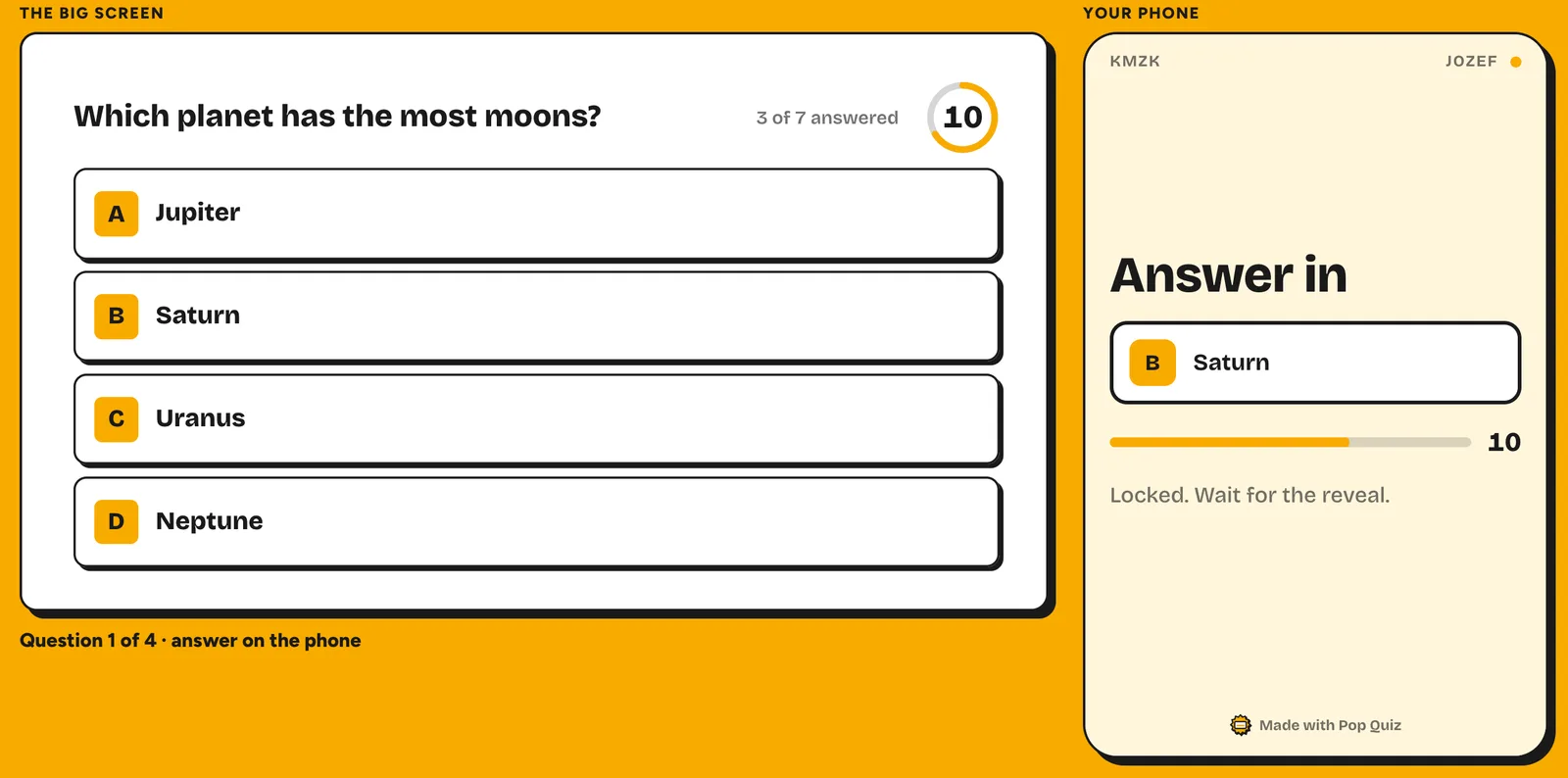
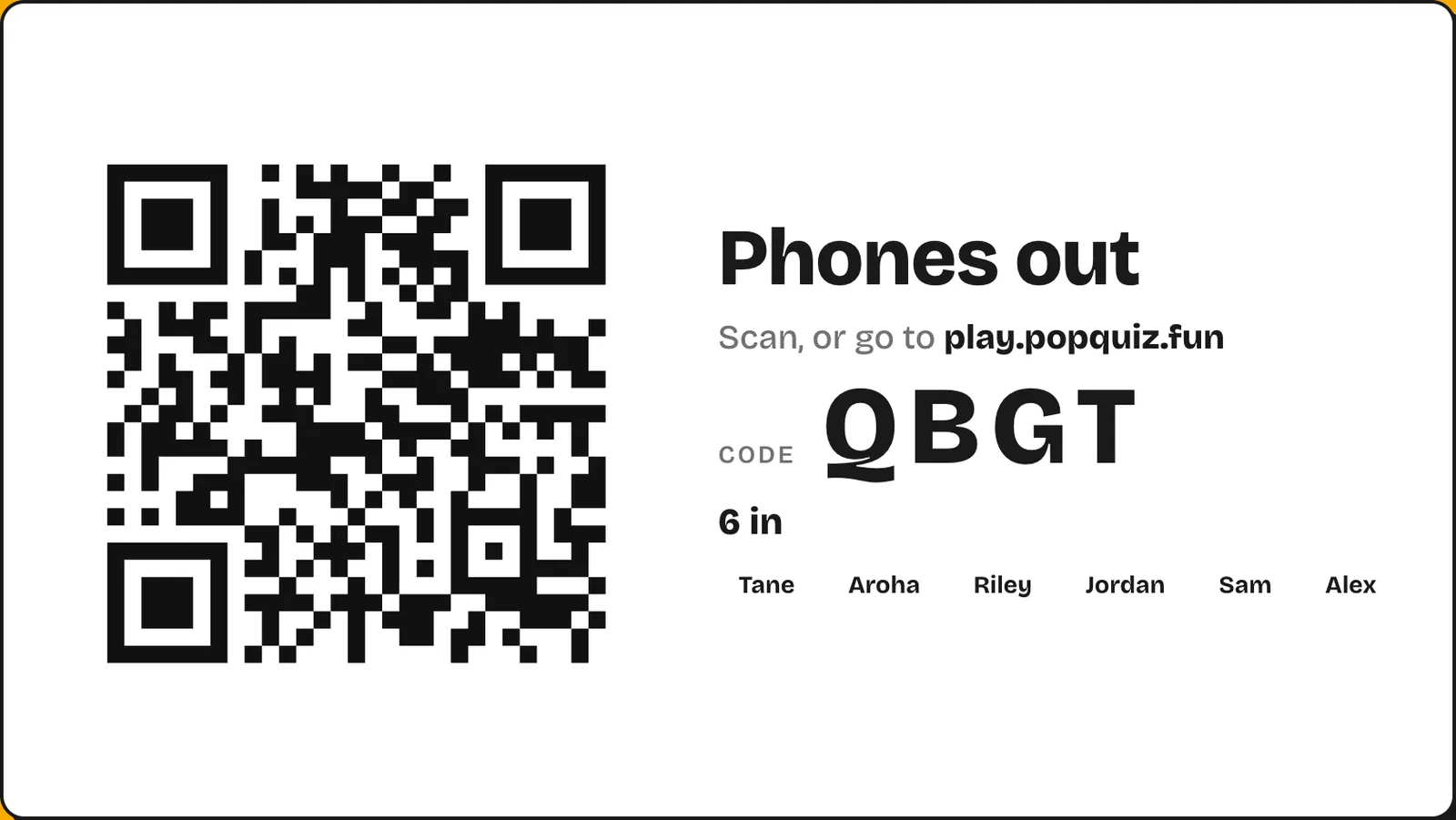
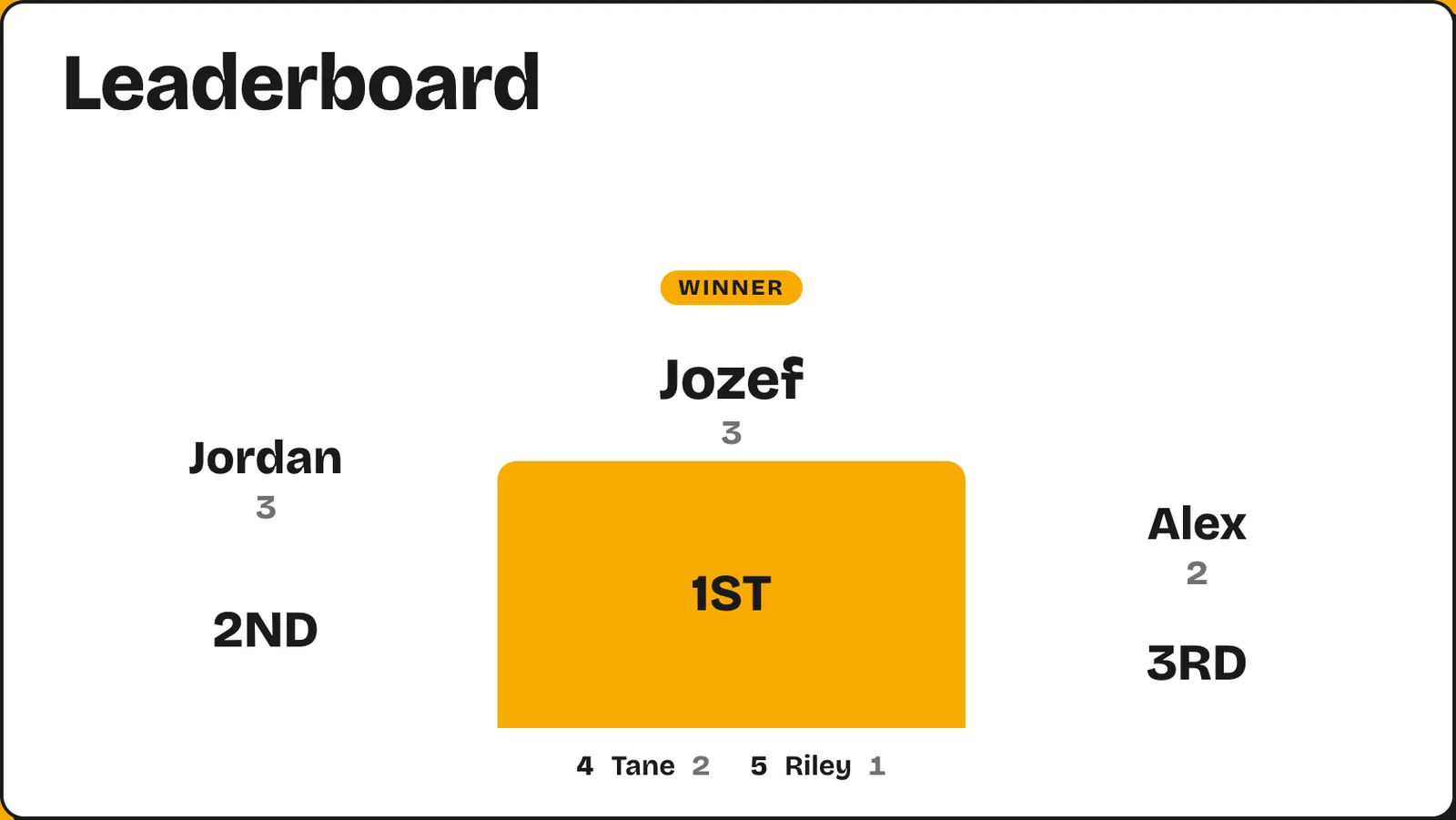
The question sits on your slide, in your deck’s fonts and colours, with a clock. Players scan a QR code or type a short address and four-letter code, pick a nickname and answer on their phone. No app, no account, for them or for you. The answer then shows on the slide and every phone, and a leaderboard shows who climbed.
Fits: a team quiz, a Friday quiz, a Christmas quiz for work, an icebreaker, in the room or on a video call. Needs: Chrome on a laptop or desktop, and a Google Slides deck. Not PowerPoint or Keynote (import a PowerPoint deck into Slides first), not phones or tablets. It’s new, with no reviews yet.
Getting started with Pop Quiz #
A few minutes from install to your first live question, inside the deck you already have.
- Install Pop Quiz free from the Chrome Web Store, in Chrome on the laptop you’ll present from.
- Open your deck in Google Slides. If it was already open, reload the tab once.
- Click the Pop Quiz icon in Chrome’s toolbar to open the side panel. No icon? Pin it from the puzzle-piece Extensions button.
- Press Agree and start. The notice explains that your questions, nicknames and answers pass through Pop Quiz’s relay during a game, and the relay keeps nothing.
- Choose what the slide does. In the Slide tab, pick a question type, a Join screen or a Leaderboard, then type the question and tick the right answer (or start from the slide’s title text).
- Place it on the slide. The quiz box shows in the editor with made-up votes; drag to move it and drag its corner to resize. Or select a rectangle and press Put it on the selected shape, and the quiz follows that shape.
- Set the look and joining once. In the Quiz tab, pick a look under For the whole deck. Under Joining, choose whether the join address and code show on every question, for latecomers.
- Add a Join screen and Leaderboards. Put a Join screen near the start and a Leaderboard every few questions. On the last, tick The final one: uncover the winner for a podium.
- Rehearse. In the Present tab, press Rehearse with pretend players and start the slideshow: twelve pretend players answer everything. Then press End practice or Start a new game so the real room starts empty, with a new code.
- Present with Google’s own Slideshow button. Pop Quiz runs the quiz slides by itself.
The keys during the show #
| Key | What it does |
|---|---|
| → | Next slide, as usual |
| T | Starts the clock on a question set to wait, or ends it early. On a final leaderboard, uncovers the next place |
| Shift + R | Wipes the question and runs it again |
A question’s clock starts when its slide appears. To read it out first, open More for this slide, and under Timing, set Starts to When I press T. Ending early locks in what phones have chosen.
The eight question types #
Pick one in the Slide tab.
| Type | What players do | Scored? |
|---|---|---|
| Quiz question | Pick from up to twelve options, A to L. Tick More than one right answer for “pick all that apply” | Yes |
| True or false | Tap one of two buttons | Yes |
| Type the answer | Type a short answer; you list up to eight that count, and close spellings count too | Yes |
| Poll | Vote from up to twelve options | No |
| Word cloud | Send a word or two; the cloud grows on the slide | No |
| Open answer | Write a line; it appears as a card you can click to hide, with rude words masked | No |
| Guess the number | Move a slider; the closest three win 3, 2 and 1 points | Yes |
| Put in order | Rank up to twelve items; give it the real order and it scores each phone | Yes, if you set the order |
On a scored question, Points makes a right answer worth Normal, Double, Triple or five times. Results show as bars, a pie, a table or On slide, as columns over photos or shapes you pick. A photo set to Show it only at the reveal stays hidden until the answer.
If something isn’t working #
| Problem | Fix |
|---|---|
| The quiz isn’t showing on the slide | Reload the Google Slides tab, and check you’re in the Chrome profile you installed Pop Quiz in. |
| Phones can’t join | Check the address and four-letter code against the Join screen (codes use only consonants, so no O to mistake for a zero), or scan the QR code. Each phone needs its own mobile data or Wi-Fi. |
| You’re on a video call | Share the deck’s slideshow tab on Zoom, Google Meet or Teams. In the Present tab, press Copy the join link, for a video call and paste it into the chat. |
| Rehearsal players are still in the game | In the Present tab, press Start a new game. The room empties and gets a new code. |
| The quiz isn’t there on another laptop | A quiz lives in the Chrome profile it was built in. Import the safety copy Pop Quiz saves to your Downloads folder. |
Questions #
How do I make a multiple choice quiz in Google Slides? #
Link each option to a “Correct” or “Try again” slide with Insert > Link > Slides in this presentation. For a room answering on phones, choose Quiz question in Pop Quiz and add up to twelve options.
How do I make an interactive quiz in Google Slides? #
Linked answer buttons work for one person clicking through. For a room, use a Google Form on phones or an extension that shows answers back on the slide. See six ways to make Google Slides interactive.
Is there a free Google Slides quiz template? #
Most quiz templates are a look with no quiz inside. With Pop Quiz, your own deck is the template: add a Join screen, questions and a Leaderboard. The Christmas quiz for work has a question list you load in one click.
How many people can play a Pop Quiz? #
A whole team or a full office: a room takes up to 150 players.
Can I make a Jeopardy-style game in Google Slides? #
Yes, with linked slides. Link each value on a board slide to its question, and put a “Back to the board” link on every question.
Is Pop Quiz free? #
Yes. No paid plan, no trial, no ads and no account. The presenter needs Chrome on a laptop or desktop.
Sources
- Google Slides and Forms steps checked against Google’s help pages on 23 October 2026, where those pages cover them. Linking to another slide in the same deck isn’t covered there; that step matches the Slides interface.
- Work with links & bookmarks, Google, checked 23 October 2026
- Present slides, Google, checked 23 October 2026
- Create & grade quizzes with Google Forms, Google, checked 23 October 2026
- Publish & share your form with responders, Google, checked 23 October 2026
- Share tabs in Chrome, Google, checked 23 October 2026
- Insert or delete images & videos, Google, checked 23 October 2026